 VexelRay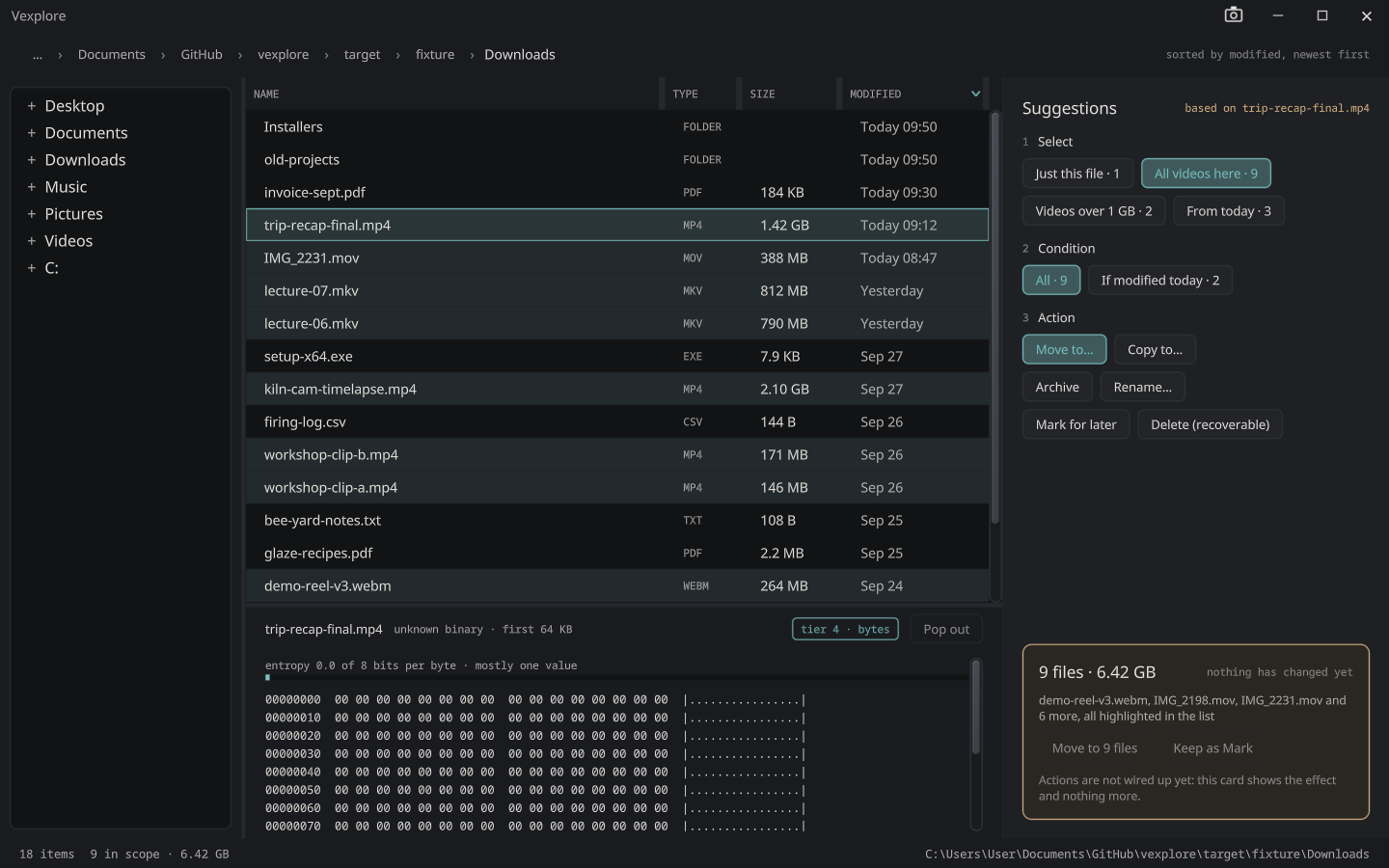

Vexplore
A file explorer that suggests instead of asking.
 0.1.1 · experimental prerelease
Nine desktop applications for Windows and Linux, drawn live on the GPU, which know about each other.
Windows: paste this into PowerShell and press Enter
irm https://sibarum.github.io/install.ps1 | iexTo open PowerShell, press Win + X and choose Terminal (on Windows 10, Windows PowerShell). Running the same line again updates everything.
Needs Windows 10 or 11 (64-bit) and a graphics card with an up-to-date driver: everything here draws with Vulkan.
Linux: paste this into a terminal and press Enter
curl -fsSL https://raw.githubusercontent.com/sibarum/vexelray-dist/main/preflight/install.sh | shNo sudo: everything goes under ~/.local, for your user. Running the same line again updates everything. These are snapshot builds, 0.1.2-SNAPSHOT, of Vex, Pix, MainFrame, Calculator and VexelRay Inspector; the rest are not on Linux yet.
Needs 64-bit (x86_64) Linux with an X11 desktop, or Wayland with XWayland, and a Vulkan driver: Mesa's, or your graphics card maker's. For now every window draws at 100%, whatever the desktop's scaling.
Desktop applications built on the VexelRay stack: a file explorer, a text editor, an image viewer, a terminal, a calculator, fluid and rigid-body simulations, a desktop client for Claude Code, and an inspector that shows a running app's frame loop. They are separate programs that know about each other, so a file in the explorer opens in the editor or the viewer, and the editor can show a file in the explorer.
A file explorer that suggests instead of asking.
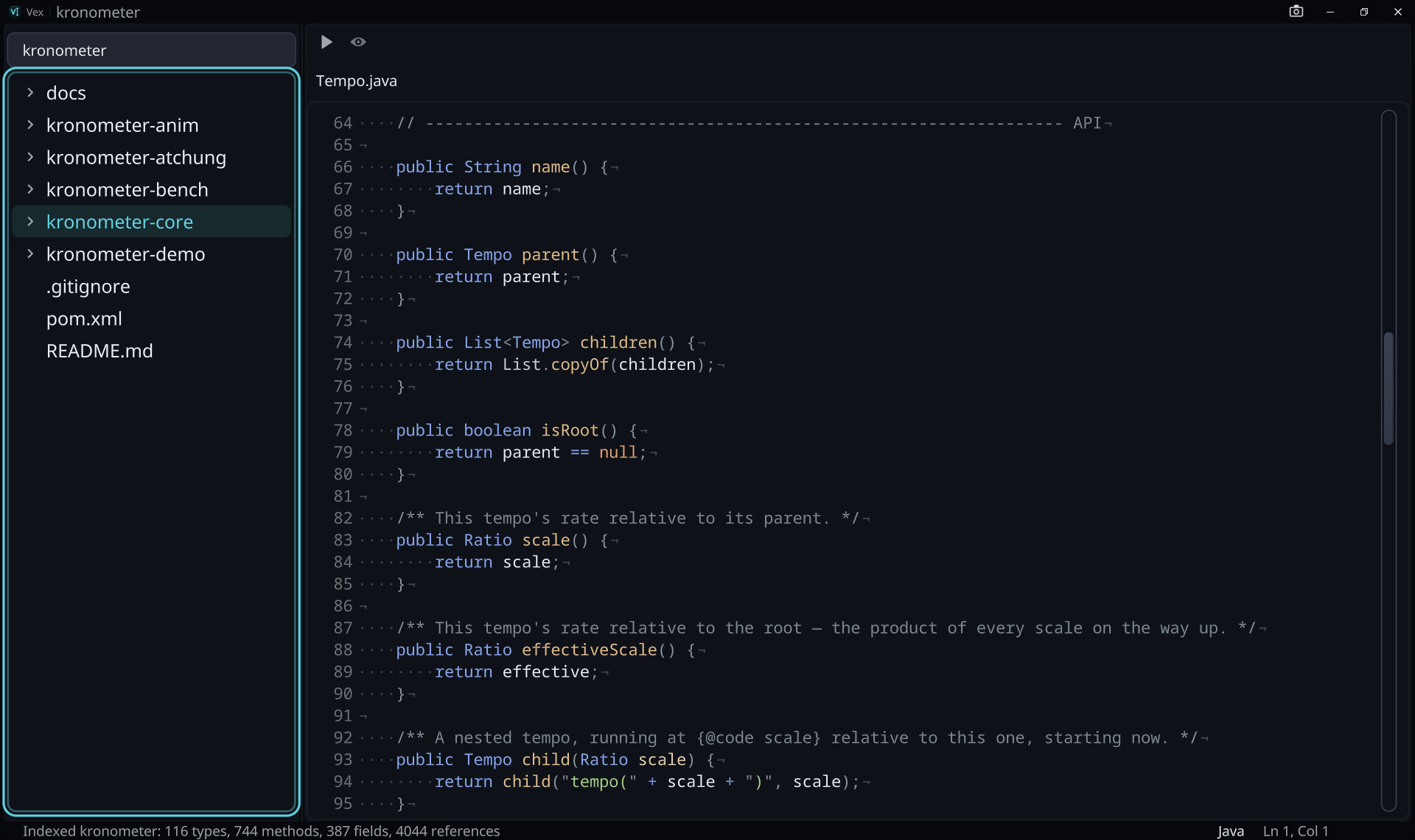
A tabbed text editor with a file navigator, on the VexelRay stack.
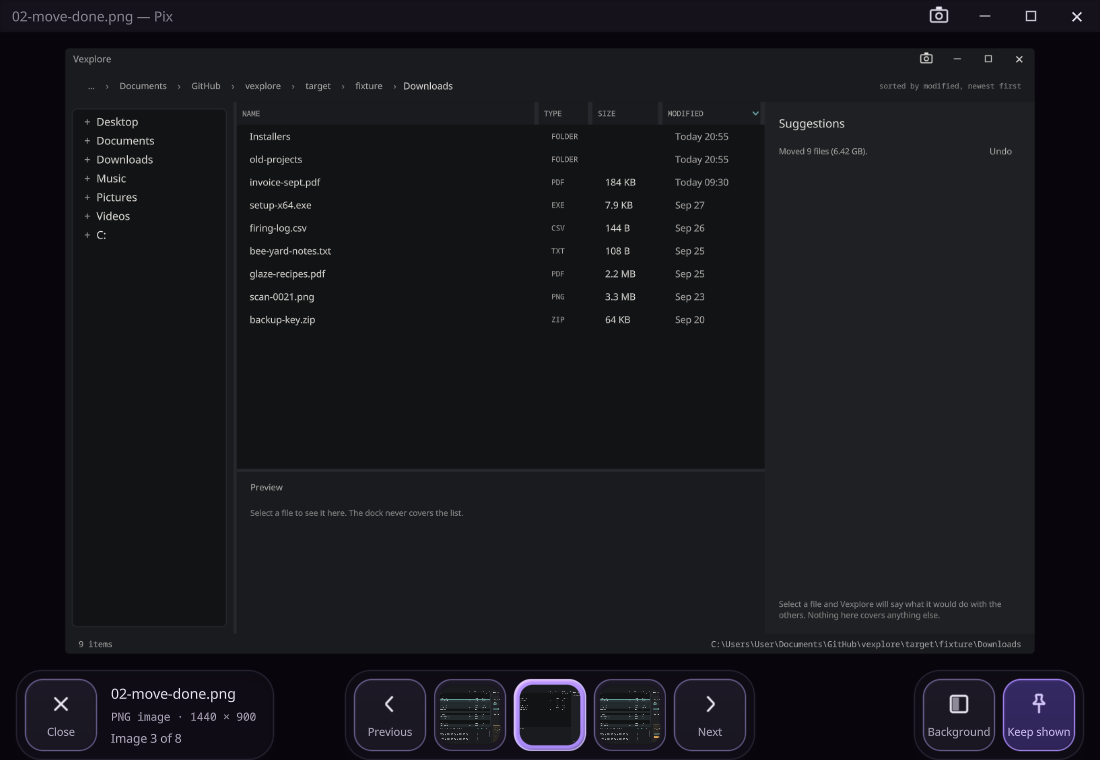
An image viewer: one picture, as large as the window allows, and the rest of its folder a key press away.
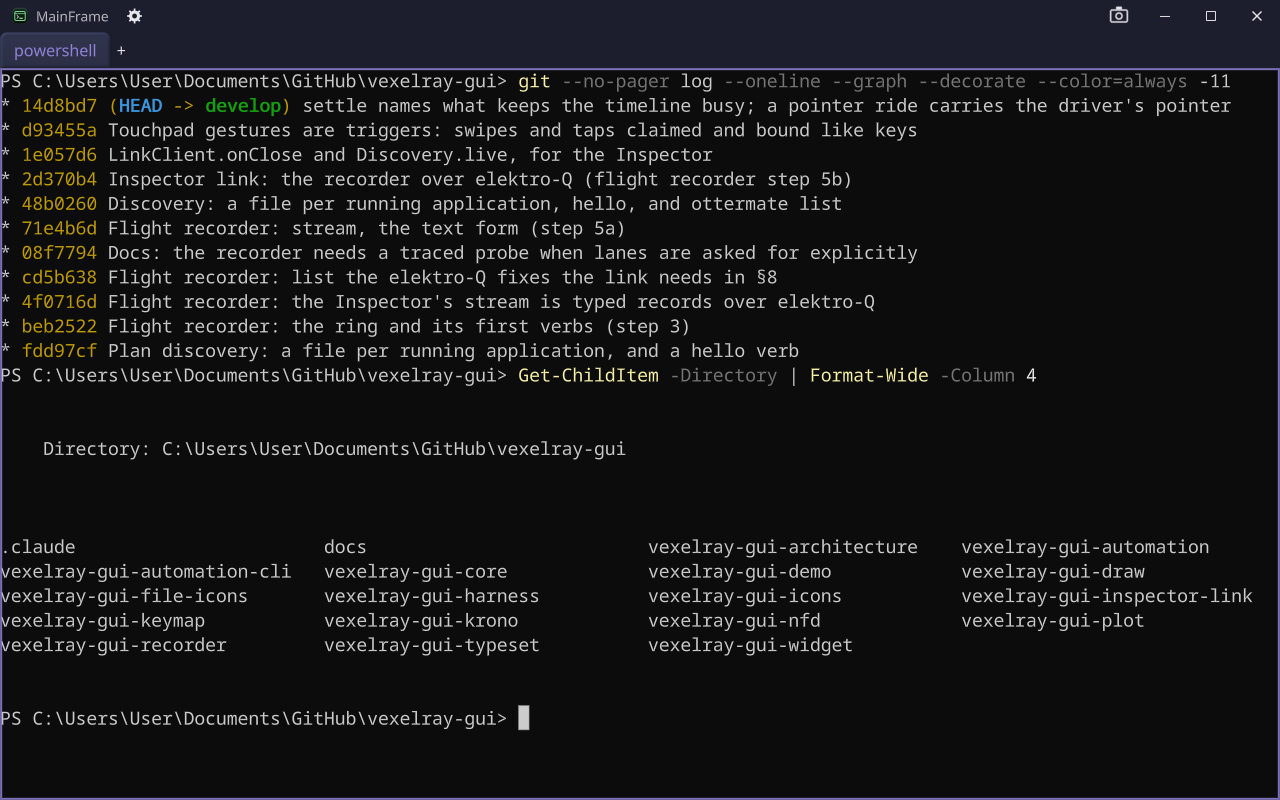
A terminal window that wraps the native Windows shell over ConPTY, built on the VexelRay stack.
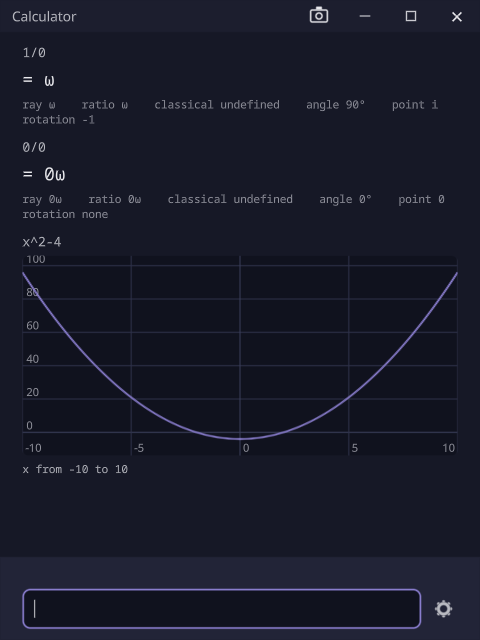
A small calculator window onto cott-engine.
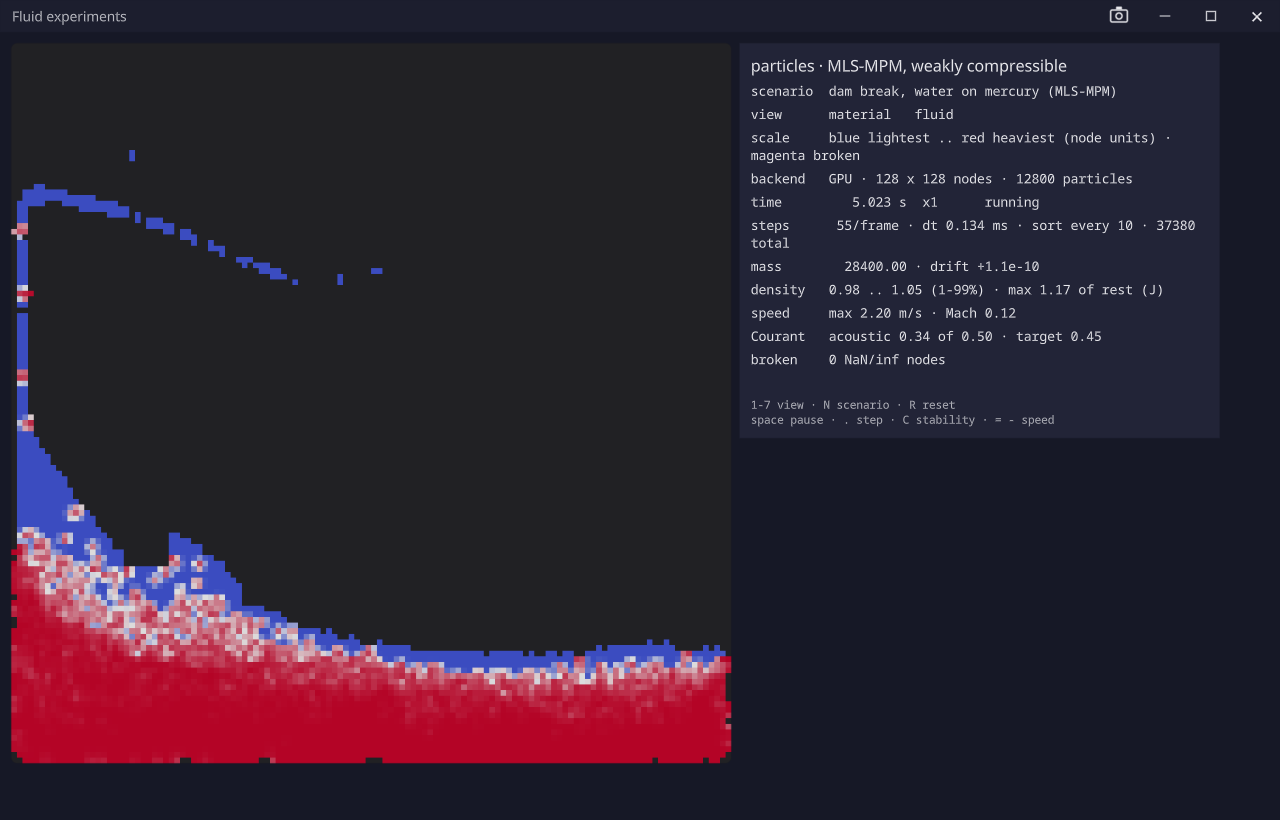

Fluid simulation experiments on the VexelRay stack: dam breaks, mixing, heat and a 3D dam break, live on the GPU.
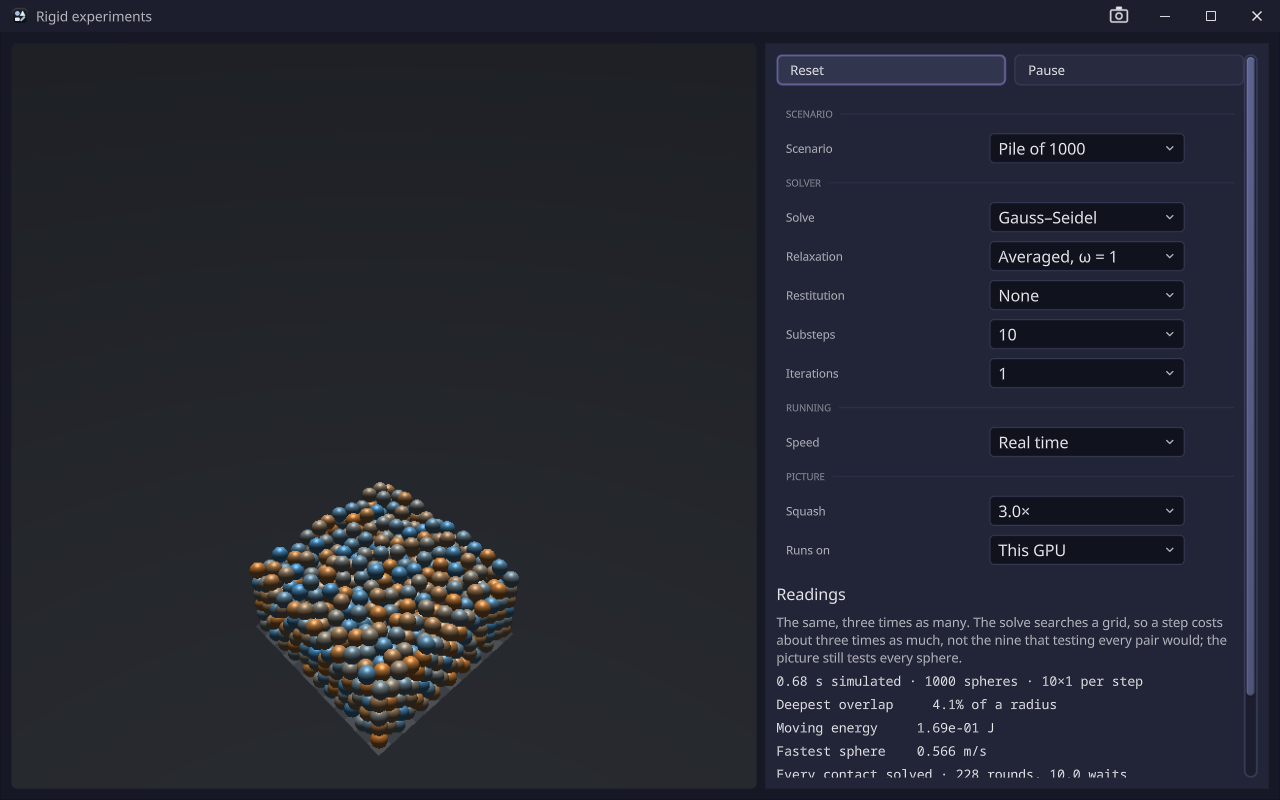

Rigid-body simulation experiments on the VexelRay stack: spheres that collide, bounce, spin and roll, live on the GPU.

A desktop client for Claude Code, on the VexelRay stack: the conversation beside a mind map its replies grow. Needs the Claude Code CLI, logged in.
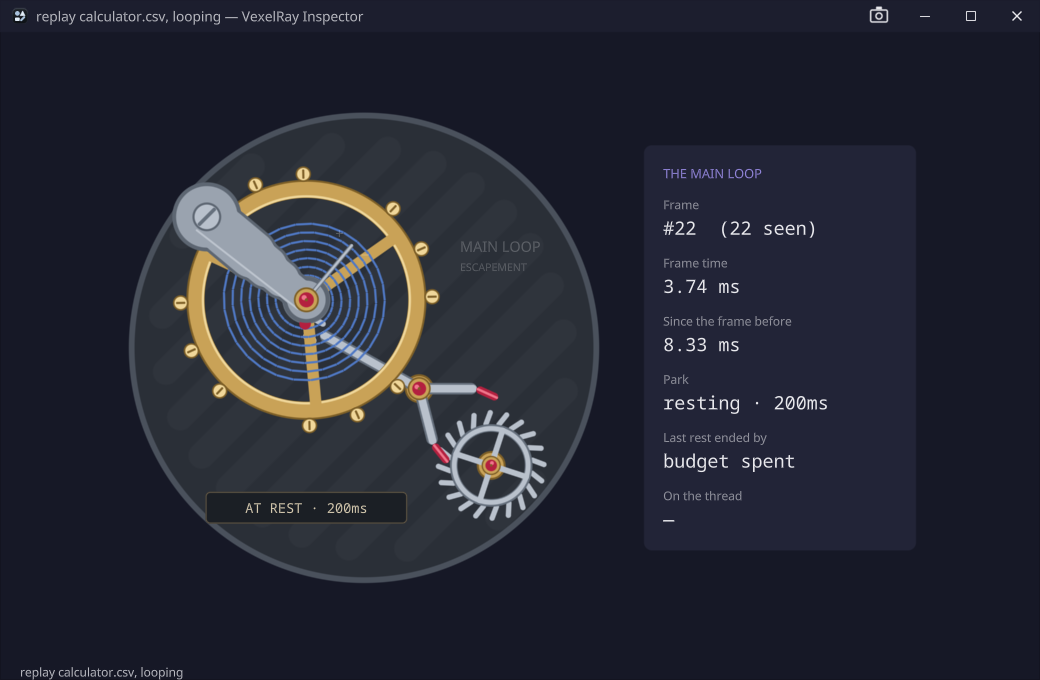

DevTools for VexelRay applications, drawn as clockwork: attach to a running app and watch its frame loop beat, park and stall.
Every application above runs on the same framework, and it does things you would not expect from a desktop toolkit.
A window draws when something changes and sleeps when nothing does, waking to its first frame in about a millisecond. The whole window is one draw call.
The main thread only draws. App logic, disk work and time run on their own lanes, placed at compile time, so a part that hangs never freezes the window.
Kronometer drives every animation from one logical clock. On its virtual clock, a ten-minute scenario runs in microseconds, identically every time.
VexelRay is also a framework: Java 25, compiled to a native executable for Windows or Linux and drawn with Vulkan. Every application above is built on it. Yours can be too, whether a coding agent writes most of it or you write all of it.
One command generates a working application with tabs, a file navigator, settings that persist, and tests that build the window without a GPU. Vex, Calculator and MainFrame all started this way.
The stack was written with Claude Code. The framework and the GUI carry a CLAUDE.md with the rules the code does not show, and every generated project starts with one. ottermate lets a coding agent drive and screenshot the window it built, so it checks its own work by looking at it.
Vex highlights Java, jumps to any declaration in your project or in the framework, and shows a folder's Maven modules before you open it. MainFrame and Vexplore work alongside it.
VexelRay would not exist without three pieces of other people's work, and we're grateful for each of them.
Most of VexelRay was written with Claude Code, Anthropic's coding agent, working alongside its author. Ottermate exists so Claude can see the windows it builds.
Oracle GraalVM's Native Image compiles every application ahead of time into a single native executable, for Windows or Linux, that runs without a JVM.
Everything here is drawn with Vulkan, the open, cross-platform graphics and compute API from the Khronos Group, with every shader compiled to SPIR-V.
Everything the install line does, and how to undo it.
It is a fair question, so read the script first. It is one file: install.ps1. What it does:
The script, the manifests and the releases are all in one public repository, sibarum/vexelray-dist.
Everything is per user, and everything is undone by uninstalling:
%LOCALAPPDATA%\ProgramsPATH, so vexplore, text-editor, pix, mainframe, calculator, maistro and vexelray-inspector work from a terminalThe window that opens has a box for each of these. To start them unticked, or to leave them out when the installer runs without a window, set any of these in the same PowerShell window before the install line:
$env:INSTALL_NO_SHORTCUTS = '1'$env:INSTALL_NO_PATH = '1'$env:INSTALL_NO_ASSOCIATIONS = '1'Untick the others in the window that opens. To choose ahead of it, or without a window, set INSTALL_ONLY in the same PowerShell window before the install line:
$env:INSTALL_ONLY = 'vexplore,text-editor'The ids are vexplore, text-editor, pix, mainframe, calculator, fluid-sim, rigid-sim, maistro and inspector.
Fluid Sim, Rigid Sim, Maistro and VexelRay Inspector start unticked, and without the window they are left out unless already installed. Tick them to install them too, or name fluid-sim, rigid-sim, maistro and inspector in INSTALL_ONLY.
Run the script as a script block, which takes arguments, as the install line cannot:
& ([scriptblock]::Create((irm https://sibarum.github.io/install.ps1))) --install-everything --do-not-prompt-me--install-everything installs every application, the optional ones too ($env:INSTALL_EVERYTHING = '1' does the same), and --do-not-prompt-me opens no window and asks nothing (as $env:INSTALL_QUIET = '1'). Either one works alone.
Run the install line again. Each application is updated to its latest version, and one that is already current is left alone. To reinstall anyway, set $env:INSTALL_FORCE = '1' first.
Use Settings › Apps › Installed apps, where each application has its own entry. Or, from PowerShell, list what is installed and remove all of it:
& "$env:LOCALAPPDATA\Programs\Vexplore\uninstall.cmd" -List& "$env:LOCALAPPDATA\Programs\Vexplore\uninstall.cmd" -AllThe uninstaller removes exactly what was installed: files, shortcuts, PATH entries, file types and the Settings entries. Files you put in those folders yourself are left alone.
Press Win + R, paste this, and press Enter:
powershell -NoExit -Command "irm https://sibarum.github.io/install.ps1 | iex"The line runs one script, install.sh. Like the Windows one, it runs each application's own installer once its SHA-256 matches the application's manifest, and that installer checks every download the same way. Nothing needs root, and everything is undone by uninstalling:
~/.local/opt~/.local/bin, so text-editor, pix, mainframe, calculator and vexelray-inspector run from a terminal; a link is never put over a file that is not its ownFor now Linux gets snapshot builds (0.1.2-SNAPSHOT), built from the same sources as the next release, until Windows, Linux and macOS ship together. Vexplore, Fluid Sim, Rigid Sim and Maistro have no Linux version yet.
Options go between the pipe and sh. Only some of the applications:
curl -fsSL https://raw.githubusercontent.com/sibarum/vexelray-dist/main/preflight/install.sh | INSTALL_ONLY=text-editor,pix shINSTALL_NO_SHORTCUTS=1, INSTALL_NO_PATH=1 and INSTALL_NO_ASSOCIATIONS=1 leave those out the same way. Run the line again to update. To remove everything:
"$HOME/.local/opt/text-editor/uninstall.sh" --allIf no window opens, check that a Vulkan driver is installed: vulkaninfo --summary, from your distribution's vulkan-tools, lists the graphics cards it can draw on.
Needs 64-bit (x86_64) Linux with an X11 desktop, or Wayland with XWayland, and a Vulkan driver: Mesa's, or your graphics card maker's. For now every window draws at 100%, whatever the desktop's scaling.
Anything is useful: it did not install, a window looked wrong, something was confusing, or you just liked it. Open an issue and say which application, what you did and what happened. A screenshot helps.